

A spreadsheet stores and manipulates data which lends itself to being stored in a table type format (e.g. Accounts, Science Experiments, Mathematical Trends, Statistics, etc. ).
The sheet is divided into rows and columns. Each entry box defined by one row and column together e.g. B3 is called a cell.
- Double click on the Excel7 icon using the left button of the mouse
- You will see:
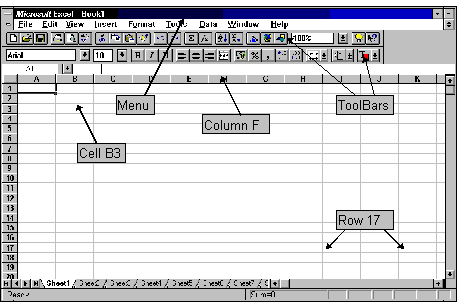
- Click on any one of the MENU items. You should see a window showing what you can do under that menu. Click anywhere back on your document to close this window
- Place the pointer on one of the toolbar icons and wait for a few seconds. The icon's function will be revealed. A fuller description of the icon's function can be seen on the status bar at the bottom of the screen
A cell can contain text, numbers, or a formula.
When you start the program the cursor is resident in cell A1.
- Type in the heading as shown and press Enter.
(Note how the cells merge to contain all of the data.)
- Enter the rest of the data as shown.
- Use the arrow keys to move from cell to cell
(Note that if using the arrow keys it is unnecessary to press Enter after entering information.)
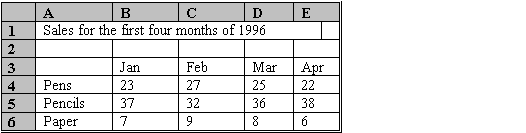
Excel will automatically left justify all text entries and right justify the numbers.
Work is saved as files. Files can be saved to a floppy disk, to an individual computer hard disk or to your own area on the network.
For safety work should be saved both to a floppy disk and to your network area.
At home you would save your work to the C drive (Hard-Disk) which is inside the machine you are using. In College this is not advisable unless you always use the same machine.
- From the Standard Toolbar select the SAVE icon

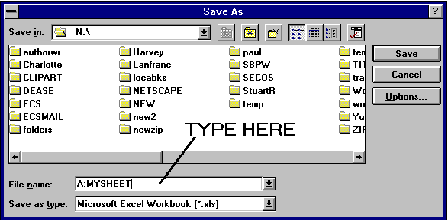
- In the filename box: Type A and a colon in front of your filename then press Enter e.g.
(Filenames should be 8 characters or less with no spaces)
To save the file to your area on the network
- Repeat the above but omit the A: e.g. type MYSHEET
EXCEL will automatically label your file as an Excel file by adding the suffix .XLS to your filename
In Excel you can print the whole sheet (selected sheet), part of the sheet (selection) or several sheets (work book)
Your sheet should be printed automatically. If several people are printing at once, the printer forms a queue so you may have to wait a short while for your printing to appear
- From the Standard Toolbar select the PRINT icon

.To print an area of your sheet
Highlight the area you want to print as follows
- Move the cursor to the cell at one corner of your area
- Click and hold down the left button on the mouse
- Keeping the button depressed drag the mouse to the bottom right corner of your area
- Release the button. (Click and drag)
- From the menu select File
- Select Print
- You will see
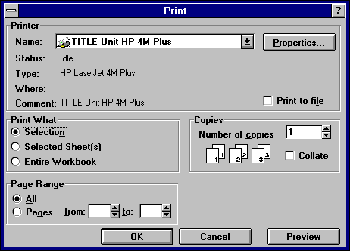
- Print What?: Choose Selection.
- Select OK