
This tutorial assumes that you have already entered and saved the sheet produced in the tutorial Microsoft Excel Part 1
If not you will have to create a spreadsheet similar to the one shown below riight
- Open Excel
- Place the Floppy Disk in the diskette drive
- Double click on the Excel7 icon using the left button of the mouse
- Click on the File Open icon i.e.

- You will see

- Click on the select button and choose the A drive
- You will see something like:
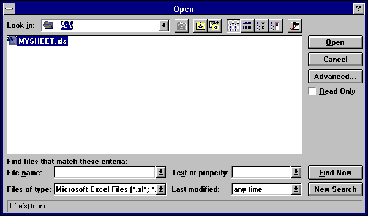
- Double Click on your saved file, which should load
To open a file saved on the network
Repeat the above but choose drive N instead of drive A
The opened spreadsheet should display data something similar to
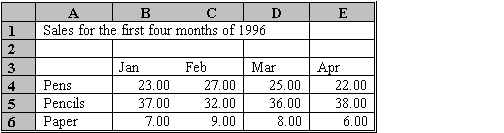
Formula cells create calculations on the contents of other cells (e.g. Totals or Averages)
All formulae begin with an = sign
The result of the calculation is seen in the cell.
The formula can be seen in the Edit Bar where it can be altered if needed.
Example 1: Adding up a column
- Select cell A8 - move to it with the mouse and click in the cell.
- Enter the word TOTAL . Then
Either
- Move to cell B8. Click on the cell.
- Enter = SUM(B4:B7) and press Enter
Or
- From the ToolBar Select
 . This symbol means "Sum of".
- Press Enter
- You will see:
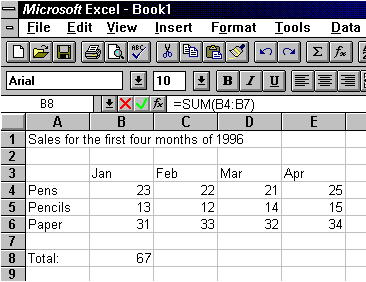
Example 2: Averaging a Column
- Move to cell A9. Enter the word "Average"
- Move to cell B9. Enter = AVERAGE(B4:B7) press return
B9 should show the average of the three items in column B
The Edit Bar should display the formula.
Example 3: Direct Entry (e.g. VAT calculations)
- Move to cell A11. Enter VAT
- Move to cell B11. Enter = B8*17.5%
B11 should show the VAT on the amount in cell B8.
The Edit Bar should display the formula.
The equivalent formula for summing column B needs to be replicated in cells C8 to E8. It is very common to require repeating formulae in spreadsheets, so Excel makes it easy for us by using using a technique called a COPY HANDLE
The value of any cell or groups of cells can be copied in this way. Try it with dates
Example Copying the Summing Columns formulae to all four columns
- Move the cursor to cell B8
- Place the cross of the pointer on the COPY HANDLE (small square on the bottom corner of the cell) The pointer should change to a small black cross.
- Click and hold down the left button on the mouse
- Keeping the button depressed drag the mouse across row 8 up to and to include E8. Release the button. (Click and drag)
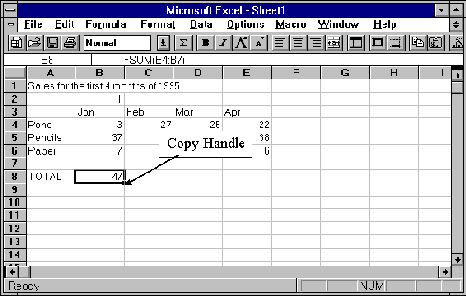
C8 to E8 should contain the results of the formulae SUM(C4:C8) to SUM(E4:E8). This form of copying is called RELATIVE REPLICATION - notice how the formula has changed in each column.
- Use the same technique to copy the formula in cell B9 to C9, D9 and E9 to work out the average for each column.
- Use the same technique to copy the formula in cell B11 to C11, D11 and E11 to work out the VAT for each of the column totals.