
This tutorial assumes that you have already entered and saved the sheet produced in the tutorial Microsoft Excel Part 1
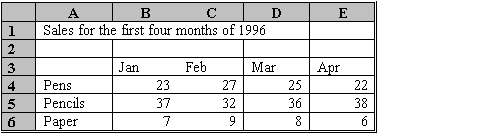
If not you will have to create a spreadsheet similar to the one shown below right
- Open Excel
- Place the Floppy Disk in the diskette drive
- Double click on the Excel7 icon using the left button of the mouse
- Click on the File Open icon i.e.

- You will see

- Click on the select button and choose the A drive
- You will see something like:
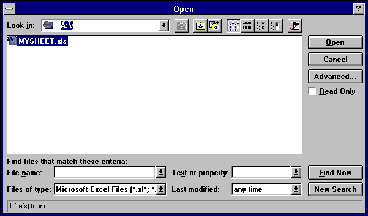
- Double Click on your saved file, which should load
To open a file saved on the network
Repeat the above but choose drive N instead of drive A
The opened spreadsheet should display data something similar to
Before you change the font, size or format of cells your spreadsheet, Excel will need to know which cells you want to change.
This is done by Highlighting
You can highlight a group of cells, rows, columns or the whole spreadsheet.
- Move to any cell
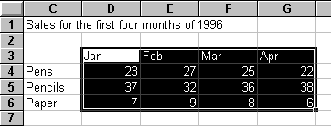
- Click and hold down the left button of the mouse and drag to another part of the sheet. The area should be highlighted
e.g.
To highlight Rows and Columns
- Move to the Row margin
- Click on a number. The row should highlight
e.g.

- Click on a column heading to highlight a column
- Dragging across several row numbers or several column headings will highlight groups of rows or columns
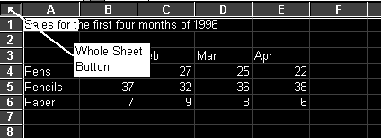
To highlight the whole sheet
- Click on the button at the top of the rows and left of the column headings. e.g.
To highlight separate areas on a sheet
- Highlight the first area as indicated above
- Hold down the
 key and highlight the second area
Excel always inserts arow immediately above the one selected
If entering rows into a set of figures on which a calculation is based e.g. Summing Columns, the new row should be inserted somewhere between existing rows.
Otherwise the formulae will not be updated
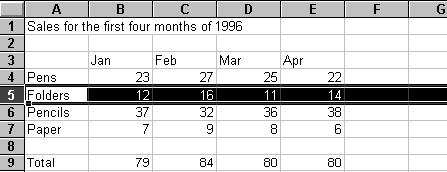
- Move to and click on the margin of row 5. (Whole row should highlight.)
- From the menu Select Edit,
- Select Insert (A new row 5 should be inserted)
Note the procedure is the same for inserting a column
- Move to cell B9 (Note how the formula has been updated)
Enter the data on folders for the new row 5. Note how the totals automatically update
- Move the cursor to cell Al
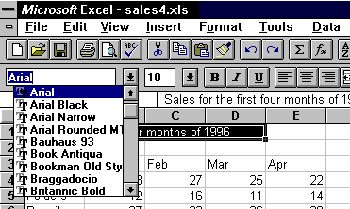
- Click and drag the mouse cursor through the text
- From the ToolBars select the Fonts pull down button
- Change the Font to ARIAL
- From the ToolBars select the Size pull down button
- Change the Size to 14
- Move to and click on the margin of row 3. (Whole row should highlight.)
- Select the right align icon
 . Months of the year should be right-aligned
- Highlight the whole of row 9
- Select the BOLD icon:

- Experiment similarly with Italic and Underline for other rows and columns
To change cell format , Example: Number of Decimal places
- Move to cell B4.
- Click and drag the mouse down to cell E12. To highlight all the numeric cells from B4 to E12
- From the ToolBars select the Increase Decimal Icon

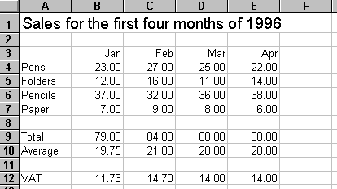
- Click twice to add two decimal places to your numbers
- You should see:
If you wish to use your spreadsheet again save your work, following the instructions given in the tutorial
Excel Part 1