SORT A LIST ON A SINGLE CRITERIA
Information in a list can be sorted in ascending or descending order, based on the values in a single column (or row) or several columns (rows).
Note: all columns (rows) in a list must be included in the sort, otherwise any data omitted will remain in the same sequence.
To sort a list using a single criteria
- either load the file saved at the end of Excel lesson 1, or create a spreadsheet similar to the one below
- highlight cells A4 to E6 (we only want to sort the data, not the headings or totals)
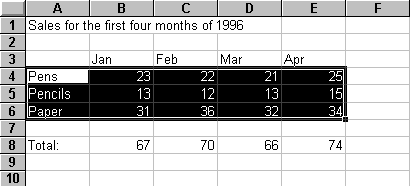
- Click on the ascending sort icon

- The data will now be sorted, by column A values, in ascending order
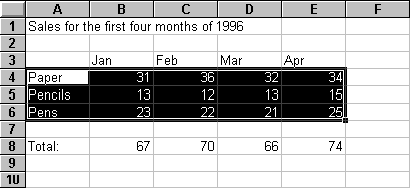
- To sort in descending order, click on the descending sort icon

- If you make a mistake with your sort, select Edit, Undo Sort immediately
SORT A LIST ON MULTIPLE CRITERIA
To sort a list using multiple criteria
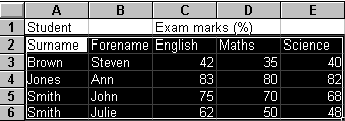
- Create a spreadsheet similar to the one shown below
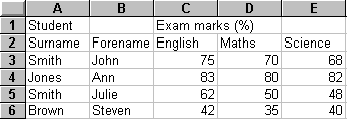
- Highlight cells A2 to E6
- Select Data
- Select Sort
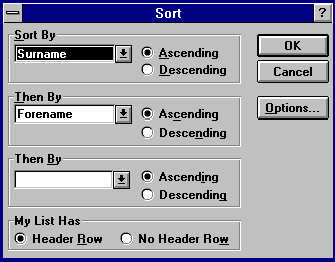
- Click on the Header Row radio button (to ensure the titles are not included in the sort)
- Sort by Surname, Ascending
- Then By Forename, Ascending (use the pull down list to select Forename)
- Select OK
If your data needs to be sorted on rows, rather than columns, within the Sort dialogue box click on Options... Select the appropriate orientation (Top to Bottom, or Left to Right), select OK
SIMPLE STATISTICS
The easiest way to perform any simple statistics is to use the function wizard 
The functions are grouped into categories, of which one is statistical.
To calculate the average of a set of values
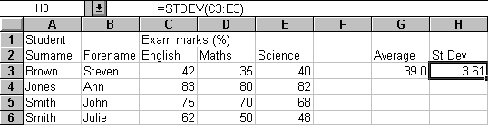
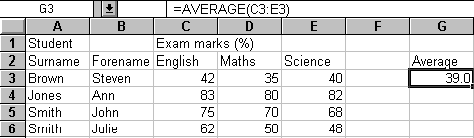
- Using the same spreadsheet as for sorting, above, select cell G3
- Select the function wizard

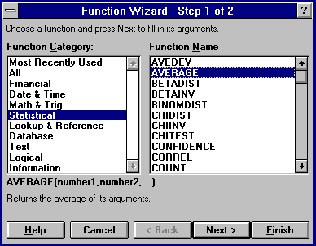
- Select Statistical from the Function Category
- Select AVERAGE from the list of Function Names
- Select Next>
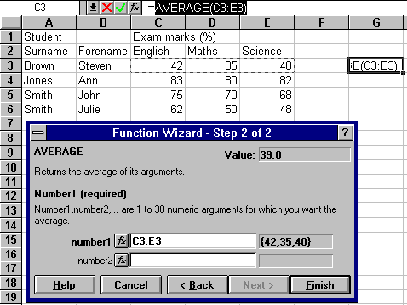
- Highlight cells C3 to E3 (the values we wish to average)
Note: within the Function Wizard dialogue box the actual values to be averaged are listed, together with the resultant Value - Select Finish
SIMPLE STATISTICS (cont'd)
- The result of the average of the values given will be displayed
To calculate the Standard Deviation on a set of values
- As for the Average function, but select STDEV from the list of Function Names