First get an image
or texture large enough to cover the length and width of the text you want
to use. *Make sure your image is in RGB or CMYK color, Not indexed
color (Image, Mode, rgb color). Next select the text tool and click on
the image. Type in what ever you want to say, choose your font, and press
OK. At this stage you will have an image similar to the one to the right.
First get an image
or texture large enough to cover the length and width of the text you want
to use. *Make sure your image is in RGB or CMYK color, Not indexed
color (Image, Mode, rgb color). Next select the text tool and click on
the image. Type in what ever you want to say, choose your font, and press
OK. At this stage you will have an image similar to the one to the right.
 Next, make a rectangular selection
completely covering the text. Now using the moving utility (arrow button)
move the text (doesn't matter how much, just move it) and then let go.
Now your text will be perfectly outlined just like in the image to the
right.
Next, make a rectangular selection
completely covering the text. Now using the moving utility (arrow button)
move the text (doesn't matter how much, just move it) and then let go.
Now your text will be perfectly outlined just like in the image to the
right.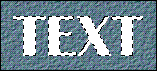
 Now go to the layer control window
and delete the layer that was created when you put down the text. The selected
outline of the text will remain.
Now go to the layer control window
and delete the layer that was created when you put down the text. The selected
outline of the text will remain.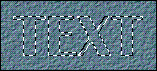
 Now go up to Select, and then
choose "inverse."
Now go up to Select, and then
choose "inverse."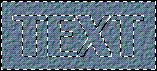
 Make sure you are now on the layer
that contains the image or texture. The image or texture surrounding the
text is now selected, so simply press the backspace key (or Edit, Delete)
and everything on that layer will disappear except for the text. Now your
text is filled!
Make sure you are now on the layer
that contains the image or texture. The image or texture surrounding the
text is now selected, so simply press the backspace key (or Edit, Delete)
and everything on that layer will disappear except for the text. Now your
text is filled!