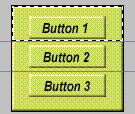
First you need to
create the image that you need to split up into smaller images. My example
is a tacky little button bar that needs to have each button divided into
its own image so it can be used for an image replacement script.
First you need to
create the image that you need to split up into smaller images. My example
is a tacky little button bar that needs to have each button divided into
its own image so it can be used for an image replacement script.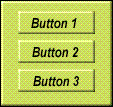
 Now make sure your rulers are
on (you can see the left ruler in the example image to the right). You
can pull down blue divider lines from the top ruler, or the left ruler.
So pull down the dividers and place them where you would like to divide
the image. This way you can accurately select part of an image. I have
placed them between the buttons so they can be divided into separate images.
Now make sure your rulers are
on (you can see the left ruler in the example image to the right). You
can pull down blue divider lines from the top ruler, or the left ruler.
So pull down the dividers and place them where you would like to divide
the image. This way you can accurately select part of an image. I have
placed them between the buttons so they can be divided into separate images.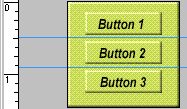
 Now using your border lines as
guides, use the selection tool to outline each smaller image of the original
image (1 at a time) and then copy it. Then create a new image using the
default dimensions which will now be set to the size of the image you copied.
Now paste into your new image and save it. Do this with all portions of
the image and then arrange the images in your page's HTML so that they
line up properly.
Now using your border lines as
guides, use the selection tool to outline each smaller image of the original
image (1 at a time) and then copy it. Then create a new image using the
default dimensions which will now be set to the size of the image you copied.
Now paste into your new image and save it. Do this with all portions of
the image and then arrange the images in your page's HTML so that they
line up properly.