
Create
a Transparent GIF image
Do you want an image to look good on a
background of any color or design? But what if your image isn't rectangular?
Then you will have to make part of the image transparent so the background
will show through.
 Take the image you want to look
good on any background. First make sure your image is in indexed color
mode (Image, Mode, Indexed Color) *RGB mode will work too, it will just
look a little different*. Select the part of the image that you want to
appear, the rest of the image will eventually become transparent. A good
way to do this is by selecting the outer one colored portion of the image
(in this case white) and then selecting the inverse. Take the image you want to look
good on any background. First make sure your image is in indexed color
mode (Image, Mode, Indexed Color) *RGB mode will work too, it will just
look a little different*. Select the part of the image that you want to
appear, the rest of the image will eventually become transparent. A good
way to do this is by selecting the outer one colored portion of the image
(in this case white) and then selecting the inverse. |
 |
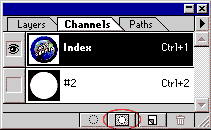
 Click on the "channels"
tab, and then click on the button circled in the image to the right. This
will create a channel which filters out certain parts of an image (the
ones not selected). Click on the "channels"
tab, and then click on the button circled in the image to the right. This
will create a channel which filters out certain parts of an image (the
ones not selected). |
 |
 Now go to File, Export, Gif 89
Export. You will now see a box with your image in a window. Below the window
holding your image, you will see an option pull down menu called "Transparency
From:" Choose the option that makes your image appear with a greyish
color around it (like in the image to the right). It will probably be called
#2 if you didn't rename the channel. Then choose OK and you will automatically
be prompted with a save image as window, so save the image. In a web browser,
the greyish area will appear transparent, and let any background through. Now go to File, Export, Gif 89
Export. You will now see a box with your image in a window. Below the window
holding your image, you will see an option pull down menu called "Transparency
From:" Choose the option that makes your image appear with a greyish
color around it (like in the image to the right). It will probably be called
#2 if you didn't rename the channel. Then choose OK and you will automatically
be prompted with a save image as window, so save the image. In a web browser,
the greyish area will appear transparent, and let any background through. |
 |