
You can quickly make duplicate copies of data and formulas in two basic ways:
Cut/Copy and Paste is a two step process. First, highlight the cell(s) that you want to duplicate, then select the Cut/Copy option from the Edit pull-down menu. Second, move the cursor to the desired location for the copied cell(s), then select the Paste option from the Edit menu.
Drag Copying is a little bit easier, but it only works if the copies are to be placed directly beside the original cells. To drag copy anything, simply highlight the cell(s), then click (and hold) the small box marker in the lower right corner of the highlighted cells.
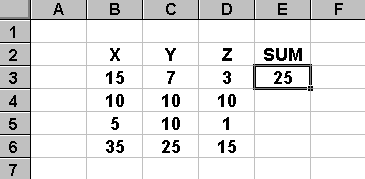
While holding down the mouse button, drag as many copies of the cell(s) to the right, left, up or down. As soon as you release the button, Excel will copy the cell data and/or formulas to the specified location.
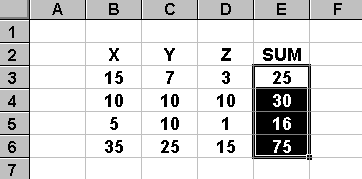
Regardless of whether you use the Cut/Copy and Paste or the Drag Copy method, Excel will update all cell formulas based on the relative and absolute addresses in the original cell(s).
 Home | Lectures | Handouts
| Assignments | Exams
| Grades | Odds &
Ends
Home | Lectures | Handouts
| Assignments | Exams
| Grades | Odds &
Ends
 This web site is maintained by John Mote for
use by students in his MIS
311F class. Your comments and questions are
more than welcome.
This web site is maintained by John Mote for
use by students in his MIS
311F class. Your comments and questions are
more than welcome.